Friday, July 29, 2022

Final Reflection for 5391 Digital Technology for the School Librarian

Final Send-Off! 

This course has been an amazing experience all the way around! I have been able to dive deeper into some technology that I felt familiar with, experience frustrations, and enjoy learning new programs and apps out there.

Most programs were fun to learn to navigate and get accustomed to. There are quite a few that I plan to bring back to my campus. However, with that being said, sometimes I feel like educators are overwhelmed with too many options at once. 

Some of my favorite ones were exploring social media, using videos and QR codes in the classroom, and creating infographics. I felt like each of these really was user-friendly and allowed for quite a bit of usability without having to pay a fee. 

One that was most difficult for me was the comics and cartoons assignment for me. I just could not get things the way I wanted them and where I wanted them correctly.

I think the one that would benefit students the most, as well as staff, is the use of creating infographics. There are endless possibilities to use infographics and I feel like our students are in that technology era where they would blossom by showing their knowledge via an infographic versus a research paper. 

For my final evaluation of a new digital resource that I haven't used, I decided to go with Book Creator to show some highlights from this semester. 

Book Creator

This was such a fun site! I signed up for the free limited account, which still gave me access to so much. It was easy to use and you can choose from templates or themes already created to make life even easier. 

I loved being able to quickly edit images or text by simply right-clicking versus having to locate a tool. There were a lot of fonts to choose from and images to pick from. There is also a Book Creator Team chat option that is available to get help when needed, even on the free account. 

One of my favorite items was the easy use of adding audio anywhere on the page!  Feel free to create your own book at https://bookcreator.com/

Please enjoy the short book that I created using text, images, clipart, and audio reviewing my thoughts about this semester.

https://read.bookcreator.com/UThrx9w6TLYEkSaqAXXX1HnTHar1/AP0jKrJ1RTujCqqZt87smA

Saturday, July 23, 2022

Universal Design for Learning

Universal Design for Learning

Understanding what Universal Design for Learning is, should be a priority in education. As an educator, we know that every student learns differently but we have to be the masters of finding the way to reach them the best. This is essentially Universal Design for Learning (UDL).  We all know that every classroom is full of diverse learners including students that are language learners, audio-impaired learners, visual learners, gifted students who require more demands, and much more!

According to this YouTube video about what UDL is, the educator is effectively helping break up or prevent barriers to students so that learning is effective for all involved. So as an educator, I have to sit back and ask myself whether I am already using some UDL strategies or helping implement learning for all students. 

Guidelines - Which of these guidelines am I already using?


Take a look at the first guideline, Providing Multiple Means of Engagement. This simply means, how am I getting the lesson or message across. This could be presenting information in multiple ways, such as using media to help highlight the major points. In the classroom, I use a lot of graphics and illustrations to help students focus on the main aspects of a lesson. This is the stage where you also want to pull from prior background knowledge and understand what students already know, to help see where you need to really start your lesson. The ultimate goal of finding different ways to provide engagement is for the learners/students to be purposeful and motivated in their learning.

The next guideline is to Provide Multiple Means of Representation, basically that educators should provide different ways to get their lessons across. Currently, I give my students a variety of ways to show me what they know, they can do voice recordings, they can give me written responses, or I have the old fashion multiple choice option to see what they know. By offering different ways for students to show their learning, I am helping create resourceful and knowledgeable learners. 

The third guideline is completed by Providing Multiple Means of Action & Expression; which will help generate students that are strategic and goal-directed with their learning. One way that I offer this type of performance activity in the classroom is by letting them select what they would like to read for an assignment. For example, if we are working on improving our summarization skills, giving the students self-selection allows for them to be more actively engaged in the material they are about to summarize. While this doesn't work in every scenario, such as standardized testing, I do try to offer it as often as possible. They seem to take ownership when they get to choose.

Teaching - Which of these could I add right now to my teaching practice?

Personally, I feel like I could step up my game with the second guideline and give a few other ways for students to represent what they have learned. After doing more research on UDL, graphic organizers are a great way to get evidence of learning established. A lot of times in the classroom, we do graphic organizers to learn the basic material and put it in a notebook to reference again later. However, that could actually be the assessment item itself in having the student create a graphic organizer demonstrating what they have discovered.

Implementation - Which of these looks great, but I might need some help to implement?

The first guideline is where I could see myself needing some help, but mainly time to implement better. For example, I already use illustrations and graphics in the learning environment but I haven't necessarily used animated graphics. I feel like this could take learning up another notch and provide for more engagement. I mean, who doesn't like a funny GIF or something moving on the screen to grab your attention.

Finding ways to help me implement more UDL in the classroom led me to a search through the web. One website, in particular, called Reading Rockets gave five examples of ways that UDL is used in the classroom. While I do several of these five options, two options that I do not do is posting the lesson goals for students. I do post an objective that appeases the administrators, but it isn't necessarily in terms that students would understand or know it was a goal. I like the rewording of making it a goal instead of an objective and plan to change that wording on my board.  Another item that the site recommended was to use flexible workspaces, this seems to be a bit harder to implement without having more space. However, reading through the examples, I can see some options that may be easy to implement like headphones or letting them work under their desk for fewer distractions. 


Conclusion

Universal Design for Learning means to provide a variety of ways to represent material, provide multiple ways for students to learn the material, and then give students selection in how to assess the material to help keep engagement and learning going. 

Sources:

CAST (2018). Universal Design for Learning Guidelines version 2.2. Retrieved from                                        http://udlguidelines.cast.org

CAST. (2010). Udl At A Glance. YouTube. Retrieved July 22, 2022, from https://www.youtube.com/watch?v=bDvKnY0g6e4.

Center for Applied Special Technology (CAST). (2019, December 18). 5 examples of universal design for learning in the classroom. Reading Rockets. Retrieved July 23, 2022, from https://www.readingrockets.org/article/5-examples-universal-design-learning-classroom


Friday, July 15, 2022

Podcasts in the Educational Setting

Podcasts

Why would anyone create a podcast? Well, the answer is simple...to get a message out to others. Podcasts vary in so many ways from listening to the latest crime thriller episodes to finding self-help podcasts to get your mind and body right each day, and all the way down to the classroom. That's right, podcasts and education go hand-in-hand. Not only can librarians use podcasts to help promote books or even promote authors, but teachers can also use podcasts in their classrooms to enrich lessons, and even more so, students can create podcasts to help demonstrate knowledge of understanding. The possibilities are endless with using podcasts in the educational setting. In this quick blog, I will highlight three of the podcast programs and sites that I have personally tried. While there are many out there that are available to check out, here are the top three that I have tried.

Anchor

This particular podcasting site was neat because it is also an easy app to use on the phone. I was able to go to the Google Play store and quickly download the app for even more ease of use. The website is also very user-friendly.  Anchor is owned by the company Spotify, so many users will feel comfortable using the program if they are already Spotify users.

When you first log in, you are walked through the basic setup and can begin deciding how you want to start your podcast and what options, like music, you want to add.


The absolute best thing about using Anchor is that it is 100% free and super easy to sign up for an account. Included are unlimited episode uploads, downloads, or even the length of the podcast episode. One way that they are able to provide this service for free is to insert ads within your podcast, just like Hulu does if you have that streaming service on your TV.

It is super easy to set up with your computer microphone (or giving access to your microphone), or even easier using the phone and allowing permissions. It was also very simple to add music as an introduction and exit to the podcast.

One final huge perk is that you can link up with someone else who may not be nearby to do a joint podcast. It is a simple "invite to join" while you are set up to record. So to try this out a bit further, I partnered up with a fellow librarian Ms. Erica Aveytia and we created a podcast together about Graphic Novels in the library. We do not live near each other, so the use of this technology was neat to allow us to record together at the same time as if we were sitting right next to each other. 

Please enjoy our podcast on what a Graphic Novel is. Click this link to take you directly to our Spotify account to listen. Graphic Novels in the Library  (If for some reason this does not work, please do not hesitate to comment and I will work on it some more.)

Buzzsprout


I have used Buzzsprout in the past and while I loved it because of the ease of use, especially setting up a profile and image; I did not enjoy the fact that my podcast was only available for a limited time unless I paid a membership. 


While you can have a free membership, it is severely limited versus some of the other podcast sites out there. You can only upload up to two hours per month and then your podcast disappears after three months. However, if you are willing to pay, there are multiple payment options to choose from depending on how often you plan to do a podcast and how much time you need.

I do love how "clean" and organized the home screen is when you log in. 


A really neat feature that may make this site worth one to purchase a monthly subscription to is the Magic Mastering option. I did purchase a one-month subscription when I used Buzzsprout in the past because of this one neat feature. I was recording my podcast while staying in a hotel and the AC was abnormally loud. Using this Magic Mastering feature, I was able to cut out most of the background sound and enhanced the vocal sound, giving me a clean-sounding podcast.


So if you are wanting to make podcasts often and don't have the quietest place to make your recordings, this might be one that you decide to do a monthly subscription at.  I feel like Buzzsprout is one of the easiest podcast sites to use. If only they offered more on their free version it would be the top pick. 

RedCircle

This is one of the newer podcast sites available for users right now. With this program, when you first attempt to sign up you have to select how you will be using the program from three available options. 


After you have chosen your category, it will let you create an account. For this review, I went with "I'm a Podcaster." Right after you select, you are prompted with their pricing plans, which really do seem reasonable when you consider the options that are given with each monthly subscription amount. 


The home dashboard is very clean and organized and immediately gives you the option to import an already created podcast or the option to start from scratch. Very similar to Buzzsprout, you are again asked to upload an image and begin formatting information for your podcast before you actually start the recording.


I felt like there were more steps and things to complete on RedCircle versus the other programs before you can get to the recording portion. However, once you are finally able to record, it is very easy to do as well as make edits and adjustments to the recording. Overall, this would not be the first pick for me but definitely a good beginner podcasting program to use. 

Podcasts in the Library

There are several ways to push podcasts for use in the library that would be educational to all those that listen. A librarian could do book talks through podcasts, there could be student-led group book talks that are recorded for others to listen to, a librarian could do a podcast with an author to help promote their book, a librarian could do mini-professional development opportunities through podcasts for teachers, and so much more!

Conclusion

In conclusion, there are so many wonderful sites out there that allow you the ability to record yourself and get your message out there for others to hear. While these are only three, I will say, personally, these three are very user-friendly for any beginner that is willing to venture out into the podcasting world. My favorite to use is still Buzzsprout; however, because of the cost and living on a teacher's salary, Anchor would be my go-to choice because it offers so much for free! As a reminder, a quick search of the phrase "create a podcast" will net you so many options to choose from and while this may be only three to look at so far, the options are endless depending on your needs and your budget.

Sources:


Sunday, July 10, 2022

Cartoons and Comics

Cartoons and Comics

Cartoons and comics in the classroom? Why on earth would that be a good thing? Well, for many reasons actually! For one, they are engaging and colorful. Most students can relate to knowing what a comic or a cartoon is. Also, one of the topics growing genres in school libraries in the past five years is Graphic Novels, which rely heavily on the use of cartoon type and comic type styles. There are endless possibilities for using cartoons and comics in the classroom within any content area. The art teacher can have students create digital art, the reading teacher can have students do book summaries that are engaging, the English teacher can have students write dramas out with the character's dialogue, and the math teacher could have students give a comic-style description on how to solve something, the science teacher could have students create a step-by-step science project or discussion of an experiment via comic strips, and other countless ways teachers could use these programs. Today I will discuss three different sites that offer teachers and students the ability to create a cartoon-style comic strip.

Fotojet

When you first log in and click design, you are offered a variety of templates to choose from. I know I've stated this before, but I really like websites and programs that offer a good starting point like templates to use. So I'm definitely going to look through those later, but today I am focused on creating comics. So instead of choosing "design" I used the pull-down menu and selected "collage" and then scrolled down the page to the template titled "Comic."


Then start looking for a good starting template; however, watch that little icon to make sure you aren't trying to use a pro one unless you are becoming a paid member. After finding a starting template, it is a lot of playing around from there. You can select photos, graphics, fonts, and more to make the comic your own.  I love that you are able to upload your own photos as well as an option. Here's the one I created by playing around on the site:

I love that they do offer a free account and you can also do a free trial for one week; however, most of the items that are really good come with the Pro version of this program. If you are interested, it is a fair price of only $6.99 per month to have access to all the wonderful icons, images, backgrounds, etc. 

Pixton

Initially signing up on this program, you are given the option of signing up as a student (but it requires a link or code from the teacher), an educator, or a business. Signing up as an educator allows the one-week free trial to access everything the site offers. 


Again, I love when sites give you things to work with so you aren't starting from a complete scratch (unless you want to). This site even gives you lesson plans that you could use Pixton with. The layout for items for you to choose from is very user-friendly on this program as well. 


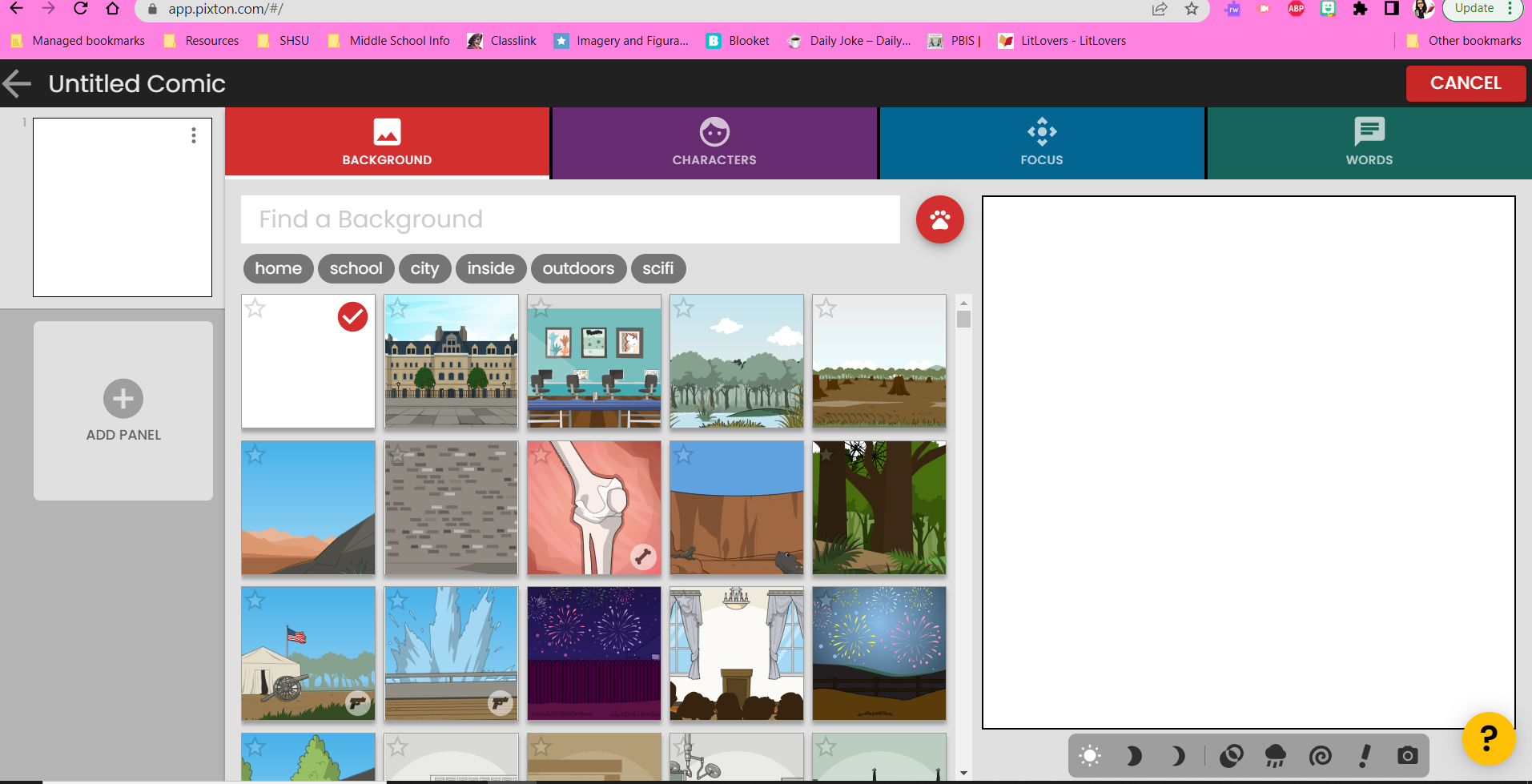
A person can get absolutely lost in time with all the options this program offers. So many different features from changing what the characters are doing, their facial expressions, the background, and much more. For this example, I went with what a teacher or educator could do in their classroom to make lessons and taking notes a little more fun. 


Pixton is definitely one program that I could see a school purchasing for teachers to use with their students. It was easy to use and understand and I think students would pick up on it quickly. The price is high ranging from $9.99 a month to $100 a month and also an unknown price for a district (I'm sure based on student population). 

Make Beliefs Comix

On first impression, this one really overwhelmed me with what seemed like everything on the log-in screen. However, once you have registered an account or logged in, the dashboard is less intimidating. With Make Beliefs Comix, features and options are located below the comic strip. A user can have a max of 18 (squares/strips) to use in the comic. 

I really enjoyed the lesson plans, ideas, and templates shared on this site. One way that I could see an educator use this in their classroom would be to create a drama/play using the strips as scenes being acted out. Personally, I do not feel like this particular one was a user friendly as the prior two. Mainly because you had to keep going back each time you wanted to add something. This particular one would require a lot of hands-on training with students to be able to use. I did like that you did not have to register an email account as this helps calm down the already overwhelming emails educators get on a daily basis from programs. 


Conclusion 

In conclusion, these three comic strip-style programs would be beneficial for use by an educator and by students in the classroom. This would have been a great tool to use during the online learning that took place two years ago. As a librarian, holding a professional development session for staff on your campus would be beneficial to show them all the uses that these comic strips could use for. Not only are the students having to reach that top level of Blooms by being creative, but they will also have a fun way to demonstrate their knowledge of learning.

Sources:

https://www.fotojet.com/

https://www.pixton.com/

https://makebeliefscomix.com/

Sunday, July 3, 2022

Videos and QR Codes in the Library

Videos and QR Codes in the Library

There are many practical ways to use videos such as ones made on YouTube to help students, administrators, staff, and community members in the library.  

YouTube

One of the channels that I did some digging around on was the BBM Media channel. There were various videos on this site to view, some from the media specialist directly showing students how to do a bibliography or what the actual library looks like. However, the newest video was four years ago, so they can stand to be updated for sure.  However, I felt like the video showing how to store headphones was the most helpful for students. I have seen this first hand when students don't know how to put things back so that it is sorted and stored correctly, plus it is super short so you would not lose their attention span. This is a great way to store headphones: 

Working through the same YouTube Channel, one video that stood out to me that I felt like kids would really like is the Star Wars-themed return your missing books video. Star Wars has picked up a lot of popularity with students in the past two years due to DisneyPlus releasing things like The Mandalorian and The Book of Boba Fett. This has hyped them up a bit, so maybe it would help convince them to dig around for those missing books.


Another YouTube Channel that I filtered through a bit was the Pikesville High School Library. While these videos were also a bit outdated, I could see the benefit that they provided students at the time. One video that I felt like students benefited from was the Pikesville High School FAFSA video. We all know that leaving High School behind and heading to college can be scary, especially financially. So this video I feel benefited students by preparing them a little about the FAFSA experience. 

One video on this channel that I think students really would enjoy was when they did a video highlighting the day they really got to focus on Hip Hop in literature and meet with Dillon from Flocabulary. In the video, they get to witness him doing some freestyle on library fees.

I could see how creating and using videos in the library would be super beneficial. One, it is the technology era for our students, so sometimes the best way to reach them is using technology. Second, you could easily promote new literature without having to print posters or try to find ways to have it around campus. You could simply make a video and then share it with all students via email or the school's website. 

Using YouTube in the library is great because you can choose whether videos are private for a select group of audience members or public for the world to see.  Some common ways I could see using YouTube in the library are:
  • Quick staff development videos (showing staff how to use programs)
  • Videos for students on check-out/check-in procedures
  • Highlighting authors or particular books
  • Hyping up an upcoming event such as a book fair
  • Book reviews
  • Spotlights on students/staff that read

QR Codes

There are many QR-generating sites out there and most are FREE! Some popular and easy-to-use sites are:


However, my favorite to use is a simple Google Extension called "QR Code Generator." I am an avid Google user and for me, having this extension ready and available on my toolbar is super convenient. 

A quick "what is a QR code" is a machine-readable code that allows a user to scan with their phone or tablet and it takes them directly to the website attached to the QR code. 

A librarian could use QR codes near the circulation table to link to a Google Form where students could request particular types of books be added to the collection or have a survey-type feedback form available to hear from the patrons. It is something that will not take up a lot of space like a stack of paper surveys would. 

Pigging backing on the YouTube idea of creating videos to push out information to students, you could create QR codes to give them quick access to those videos. You could have QR codes around the school, or near sections in the library highlighting some top reads. If you are lucky enough to have student helpers in the library, I'm sure they would love to ability to create quick "book talk" videos and use QR codes to share those with other students. Below is an example of what a student or the librarian could create (I used Animoto to create this video) and share via a QR code for others to enjoy.

The Downstairs Girl by Stacey Lee

(Book synopsis provided by Goodreads)

By day, seventeen-year-old Jo Kuan works as a lady's maid for the cruel daughter of one of the wealthiest men in Atlanta. But by night, Jo moonlights as the pseudonymous author of a newspaper advice column for the genteel Southern lady, "Dear Miss Sweetie." When her column becomes wildly popular, she uses the power of the pen to address some of society's ills, but she's not prepared for the backlash that follows when her column challenges fixed ideas about race and gender. While her opponents clamor to uncover the secret identity of Miss Sweetie, a mysterious letter sets Jo off on a search for her own past and the parents who abandoned her as a baby. But when her efforts put her in the crosshairs of Atlanta's most notorious criminal, Jo must decide whether she, a girl used to living in the shadows, is ready to step into the light. With prose that is witty, insightful, and at times heartbreaking, Stacey Lee masterfully crafts an extraordinary social drama set in the New South.


Enjoy my book trailer over The Downstairs Girl created by using Animoto. Simply scan the QR code below to go straight to the trailer - enjoy!

https://animoto.com/play/08PT9y9LjN7iXoJyjcw9eg

Animoto

This is a free site, for the most part, that allows you video-creating options. It really is beneficial to educators in any stance and with an educator account, your videos can be longer than the regular free of 30 seconds. This is a great tool to share with students and have them turn their book talks into a quick book review video. When I stated it is free for the most part, it is because there are only a few options available that are not "pro" versions; however, I think with enough persuading a district might be inclined to purchase this for a librarian to be able to get even more book trailers out there for others.

Conclusion

In conclusion, with new technology advances every day there are so many ways to use YouTube, Animoto, and QR codes in the library. There are endless possibilities with using the QR code in and out of the librarian. Something not mentioned earlier is using QR codes to direct administrators to be able to view something in an agenda or even community members being able to view an event video by scanning a QR code on a newsletter.

Sources

https://www.youtube.com/user/bbmsmedia/videos 

https://www.youtube.com/user/pikesvillehslibrary/videos

https://animoto.com

Tuesday, June 28, 2022

Infographics - The Way to Show Information or Data

What is a way to display information or a lot of data? Well, one way would for sure be using an infographic. What is an infographic you may ask? Well according to the Oxford English Dictionary, an infographic (or information graphic) is "a visual representation of information or data." However, in easier terms, it is simply a collection of imagery and data visualizations such as pie charts or bar graphs with minimal text to give an overview of a topic. Infographics are engaging visuals that communicate information quickly and easily. 

For this blog, I will be sharing three websites that offer the help of making infographics.  You can click on the image and it will take you directly to each site.


Piktochart

When you first log in, you come to your Dashboard where you can filter by creating a Piktochart Visual or Piktochart Video. For the purposes of this review, I focused on the Piktochart Visual; however, the Piktochart Video is a neat added feature not to be forgotten. Also on this dashboard or your home location, is any work that you have already created in the "Workspace" area. It does provide ease of access to be able to find something you've been working on quickly and easily. 


If you have not created an infographic on this site, the first step is to scroll down on the dashboard page to where the center states "Create New." This is where the fun begins! You have the option of starting with a completely blank canvas or using one of their pre-made templates and just inputting your own information. I am one of those "don't recreate the wheel" people, so I love the option of choosing templates to go through.

Once you find the template you want, you are able to choose from things such as icons, text, charts, maps, and styles. Each of those main categories breaks down even further giving you options for tons of illustrations and graphics of your choice. You are even allowed to upload your own images, so have fun putting those Bitmojis on your infographic and make it, even more, your own!

After you finish creating your infographic, then you are able to preview it before you share or print it. This particular site, Piktograph, was very user-friendly. Here is one that I created based on information gathered from an article on the Pew Research Center site.


Pros

  • Can sign up for free using an email address or logging in through Google
  • You can download the final project as a PNG, PDF, or Powerpoint
  • User friendly
  • A large bank of icons, graphics, charts, maps, and styles to choose from for free
  • Clean-looking dashboard (easily find projects)

Cons

  • A free account only allows 2 downloads
  • A paid account is required for some higher graphics
  • The Pro version for educators and students is $39.99

Easelly

Now for this one, I did not create a final infographic but did play around enough on the website to fill you in a bit. When you first open this site, you are able to set up a free account just like you could on Piktograph. You can use your email or be able to sign in by linking your Google account. 

There are a few options once you log in and are redirected to the nice clean dashboard. You can create a design, search their templates, create folders, or work on a project you have already started on. There are three different pricing levels based on your status and what you are needing. Each one adds a bit more to the price increase. Rates as of right now are Student $2 per month; Individual $4 per month; or Business $5 per month.

I do like that when you click "new design" the first thing to pop up is a sizing chart for you to select what size you want for the final project. This is great for making flyers or even posters! The graphics they offer for free are pretty generic but they are still colorful and would work well on items. They have a great selection of premade templates for the user to be able to go in and edit the information and graphics. This is super helpful for those like me that do not want to "reinvent the wheel" and start from scratch.


Overall, Easelly is very user-friendly and would be great to use with students and teachers for a fair cost. 

Infogram

For our final glance at a site to help build and create infographics, we will look at Infogram. My first impression of this site was not great compared to the sites above. I felt like the dashboard wasn't as clean and nice as the first view. There was a bit much going on and I had to really focus on what I was wanting to do.


I decided to go through the basic steps and start by clicking "create a project." After an overwhelming experience on the dashboard, I was pleasantly surprised that it immediately takes you to the templates. There are only twenty-five templates that fall under the free plan on Infogram. 


A huge downside to this site is that after you select your template, you are immediately prompted with whether or not you are making this infographic public or private. I prefer the use of private; however, only the paid version will allow for the selection of private. This is an issue if you were to use this with students in a classroom. After making it public just so I could play with more features, I became overwhelmed again. There is just too much on the screen to be able to figure out without clicking around too much which button you need. While this site had a lot of what was offered on the previous two, it was just not laid out comfortably for me personally. However, I would love to hear from anyone that has a different experience on this site.

Conclusion

In conclusion, infographics are a great resource and tool to use with students, teachers, and even community members. For example, maybe you are trying to highlight which genre of books are being checked out the most or the number of times students are visiting the library; you could use an infographic to get this information across versus a boring excel sheet or an article to read. Infographics are appealing to the eye and will help grab a reader's attention.


**Please note, to view images more clearly, please click on the image itself.**

Sources:

https://www.lexico.com/definition/infographic

https://piktochart.com/

https://www.easel.ly/dashboard

https://infogram.com/app/#/library

Anderson, M., Faverio, M., & McClain, C. (2022, June 2). How teens navigate school during covid-19. Pew Research Center: Internet, Science & Tech. Retrieved June 26, 2022, from https://www.pewresearch.org/internet/2022/06/02/how-teens-navigate-school-during-covid-19/


Monday, June 13, 2022

Social Media and the Library - Do they go together?

Who does social media actually reach and inform? Well anyone that has a phone pretty much has access to social media, so in theory, it is a great tool to use to reach more users. So is social media something that should be incorporated into the library for a school? Personally, I feel that it should because I think you could reach even more users in your community through the multitude of social media options that most people use.

Facebook

Most people are somewhat familiar with Facebook, but maybe not all the detailed search options that are built-in. I played around with a lot of the searching features to work to find a few school libraries that used Facebook this past school year. The first thing I did notice is that most of these libraries were high school libraries, while only a handful were elementary libraries. I'm assuming this might be because the high school's target audience is above the age of 13, which is the required age for a Facebook account.

I skimmed several local ones plus some in other states. Most highlighted posts to the public about summer reading programs they offer or they are promoting to help keep students engaged and active readers through the summer months. Throughout the school year, scrolling back posts, they focused on posting events happening in the library ranging from book challenge activities, Donors Choose projects to get the public to help build the library collection more, to highlighting the Sora app that a lot of libraries are using, and much more. One thing that really stuck out was that they are not updated regularly. Most of the ones I skimmed through had a lot of postings during the time that everyone was doing "online learning," but then not many posts at all this past school year.

There were a few libraries that actually posted pictures of students engaged in learning while in the library. It was neat to see some of the flexible seating options within these libraries. I found too many of these to pick which one to share in particular, but it was neat to see how everyone has their seating arrangements in their libraries. One post that really caught my eye was a "Bookmobile" that would operate during the summer to keep kids reading. (BPESLibrary) This was a great way to reach out to the public to let them know. On one of my local school's library Facebook pages, they showed a video of a new 3-D printer that was just gifted to them and how it worked. (VidorHSLibrary) That was neat to see and I think they could promote it more by having students interact with the printer while they do an updated video. It was good to see that not only are libraries all about books but there is so much more offered within those walls. While there were not many comments, most posts on these pages did have "likes" which shows me that it is reaching users, but how many are actually interacting with it versus just clicking a like button.  Maybe the library could pose questions that would generate comments and responses.

A few advantages of using Facebook are the number of users that it can reach. Out of the current trendy social media aspects, this one has been around the longest. It is super easy to use and Facebook users have the option to mark the page as a priority meaning it will show up on their feed first. This is great for those that really want to be involved in the library.

A few disadvantages that stick out with using Facebook, is the user age requirement. Elementary librarians would need to work a bit harder to get parents and the community on board with their Facebook page as their students would not be old enough to have an account to see what is being posted. Another disadvantage is that there are so many businesses that use Facebook now, that sometimes posts can get "lost" in a user's stream.

I do not think Facebook's popularity is going away but it has shifted a bit with Tik Tok being the new front runner; however, I still feel like it is a great way to reach the community and promote all things that are happening in the library. I did start up a page, which is completely bare as I'm not in the library yet, but I have it ready to go as soon as I am in that spot. Feel free to follow and hopefully in the near future I can rename it to match the school I will be working at.  https://www.facebook.com/Keeping-Literature-Lit

Twitter

Twitter is hard for me personally. I set up an account years ago for professional development once to try to win prizes and then really never touched it again until one of our local libraries had a reading contest. I have started playing around with it and exploring people to follow. 

My first person to explore was Kathy Schrock and I'm not going to lie, my first thought was "Oh my, this person hasn't posted since 2020!" Until I quickly realized I was looking at a pinned tweet. Clearly, I still have some learning to do on Twitter, but hey I'm an education professional, so my learning never stops! I have used FlipGrid for years and did not know that I could do this! It was neat to watch what Ms. Schrock shared about how to use this Anchor app to make it an audio file to start a classroom PodCast! 


So neat! Now to get schools to not block Spotify and this would be a great asset in the library or classroom. Make sure and give @kathyschrock a follow on Twitter for sure!

Next up, I searched through Linda Braun's Twitter feed and immediately noticed that she likes to "retweet" information. One particular retweet that stood out to me was an article about how COVID has affected libraries across the world. One issue I do have with this is after clicking on the article on her feed, it takes me to their main feed, and then I still have to click the article again by highlighting the link and putting it in the toolbar. This is a bit time-consuming when you just want to view the article. After having to end up typing in the URL because you cannot copy from an image, it was an interesting read because you really only heard about issues in the classroom during the online learning time. Here is a link to follow Linda Braun @lbraun2000. 


A few other notable individuals to follow are Alan November, The Daring Librarian, and Jim Lerman, as they each play a key aspect in promoting new digital technology for educational purposes. While Alan's were a bit older on the posting side, they are still relevant to today. Most of his tweets are about how students need help to progress in research in the classroom. It appears he did quite a few web professional development courses for educators. He hasn't posted since 2019, but still some great tweets to glance through @NLearning. Gwyneth Jones (The Daring Librarian) has amazing tweets that range from articles about the rise of gun violence in communities to ways to help promote being an Ally for the LGTQB+ community. I absolutely loved that she creates items and lets you have them for free. One of her most recent items was the "Ticket to Ride" freebie printables! So neat to share what she has created to make life a little bit easier. See for yourself by checking out her account on Twitter, The Daring Librarian. Now Jim Lerman's tweets mainly focus on the technology side of education; however, he does also share some top lists about different genre groups, so he gives you a variety on his feed. Make sure to check him out @jimlerman.

Not only are there really good individuals to follow and read through on tweets, but a lot of professional organizations as well that pertain to education and the library. Before you wander too far, feel free to follow me on Twitter as I attempt to become a more active user on this platform. @jbertrand6th

Instagram

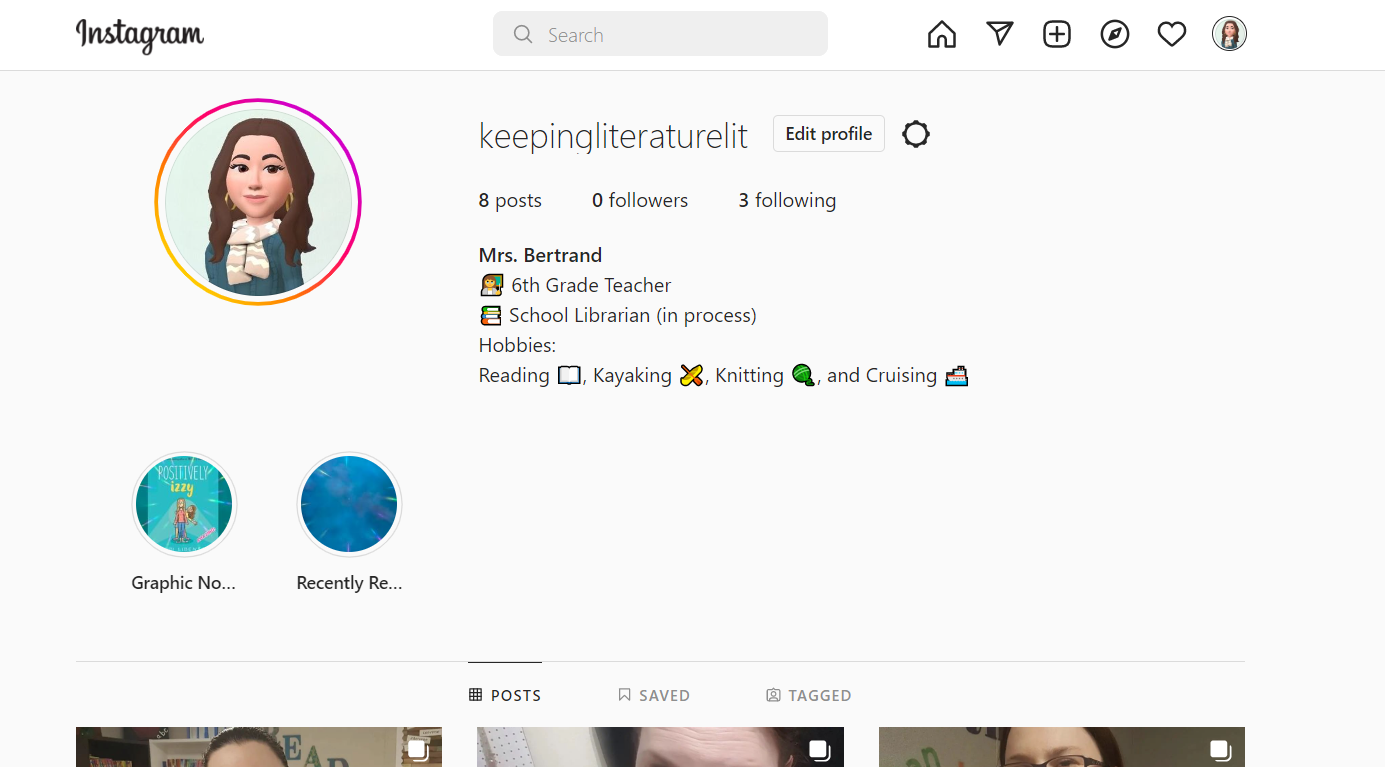
While I've had a personal Instagram for years and a classroom one for a few years, I decided to start a brand new account dedicated to books and the library. I spent some time taking screenshots from my personal Instagram of book reviews I did one year for a contest through our school and added them. I moved away from Instagram over the past few years as I feel like not many were really using it as much thanks to Tik Tok; however, I would like to get back into posting reviews on there for my students to see.  While I use Good Reads, I do not necessarily share that with my students, but I would feel good about sharing Instagram with them.

Using the highlight function of Instagram would be useful in the classroom or library by allowing students and yourself to promote new literature. Maybe you just got some new books to add to the library shelves and you want to highlight them first. This is an easy and fun way to do a quick video (highlight) of the new material and it would stay located right below your profile for easy access. I am still working on mine, but have already set up a highlight for some Graphic Novels that I've read this year and plan to set up a highlight for each genre as time allows. I really like how the highlights stay right below the profile for quick access.


One huge benefit of using Instagram would be to work with incentive programs. My local high school did this, which is why I had originally started the reviews, to help promote students to read more. It was fun skimming through the high school's Instagram, seeing other reviews, and getting more books added to my "to read" list. There are so many apps that allow you to make pictures fun and engaging before you even post to share, this would be an appeal to the teenage group for sure. For example, I tried a few apps for my Android and found one that would let me add text and clipart to a picture before sharing. I love how you can really personalize pictures before you share them to your feed, students would have fun with this for sure.


My only concern with Instagram is the use of students' photos because you would want a public account so that your book reviews and information reach many users; however, posting photos of students will require some background digging to make sure those posts are allowed with your school district.

Link to my Instagram: https://www.instagram.com/keepingliteraturelit/

Conclusion

After reviewing these three social media outlets, I will say personally I felt like Instagram would be the most effective because of the ease of use. I feel like a librarian would be apt to use it more regularly. I think Facebook is in a close second with ease of use and the ability to really reach users. Lastly, I would say Twitter is a good source for a librarian themselves in growing in their own professional development and connecting with others in the profession; however, I do not feel like it would be used as much by parents, students, or community members in the way it would benefit the library the best. According to another blog by The Social Institute, after surveying over 10,000 students, Instagram was the top pick for students over 13 years of age. (The Social Institute 2022). This really pushes the ease of use that I mentioned so again, I think Instagram would be the best starting point for a new librarian to bring social media to his/her library.

References:

10 THINGS STUDENTS WISH YOU KNEW ABOUT SOCIAL MEDIA. (2022, January 14). [web log]. Retrieved June 10, 2022, from https://thesocialinstitute.com/blog/10-things-students-wish-you-knew-about-social-media/.


Year Long - Reading for Enjoyment

  Year Long - Reading for Enjoyment Grade Level : 6th - 8th  Standard(s) : AASL A.V.1 - Reading widely and deeply in multiple formats and wr...